What RealSun Offers
RealSun combines solar plant discovery, NFT-based investment, and a resale marketplace. New users should start on the homepage and then move into account creation.
New User Handbook
RealSun presents solar plant performance data, NFT investment offers, wallet transfer tools, and marketplace listings in one workflow. This manual shows new users how to register, connect MetaMask, acquire NFT fragments, move RSP into the wallet app, and use the DEX flow.
01
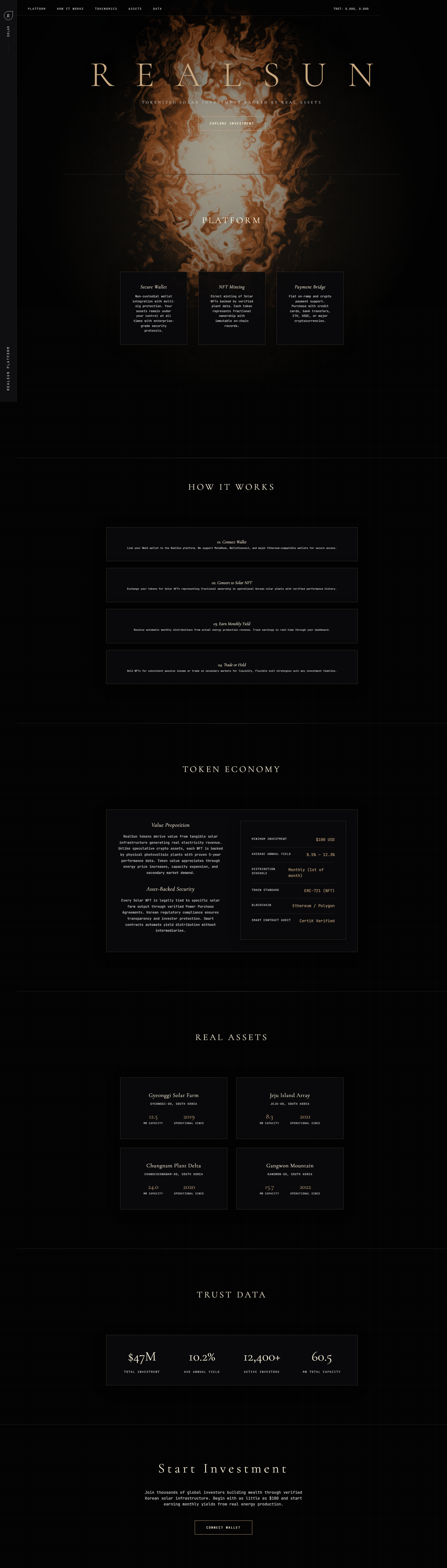
RealSun combines solar plant discovery, NFT-based investment, and a resale marketplace. New users should start on the homepage and then move into account creation.
02
Use the Get Started button or go directly to the registration screen.
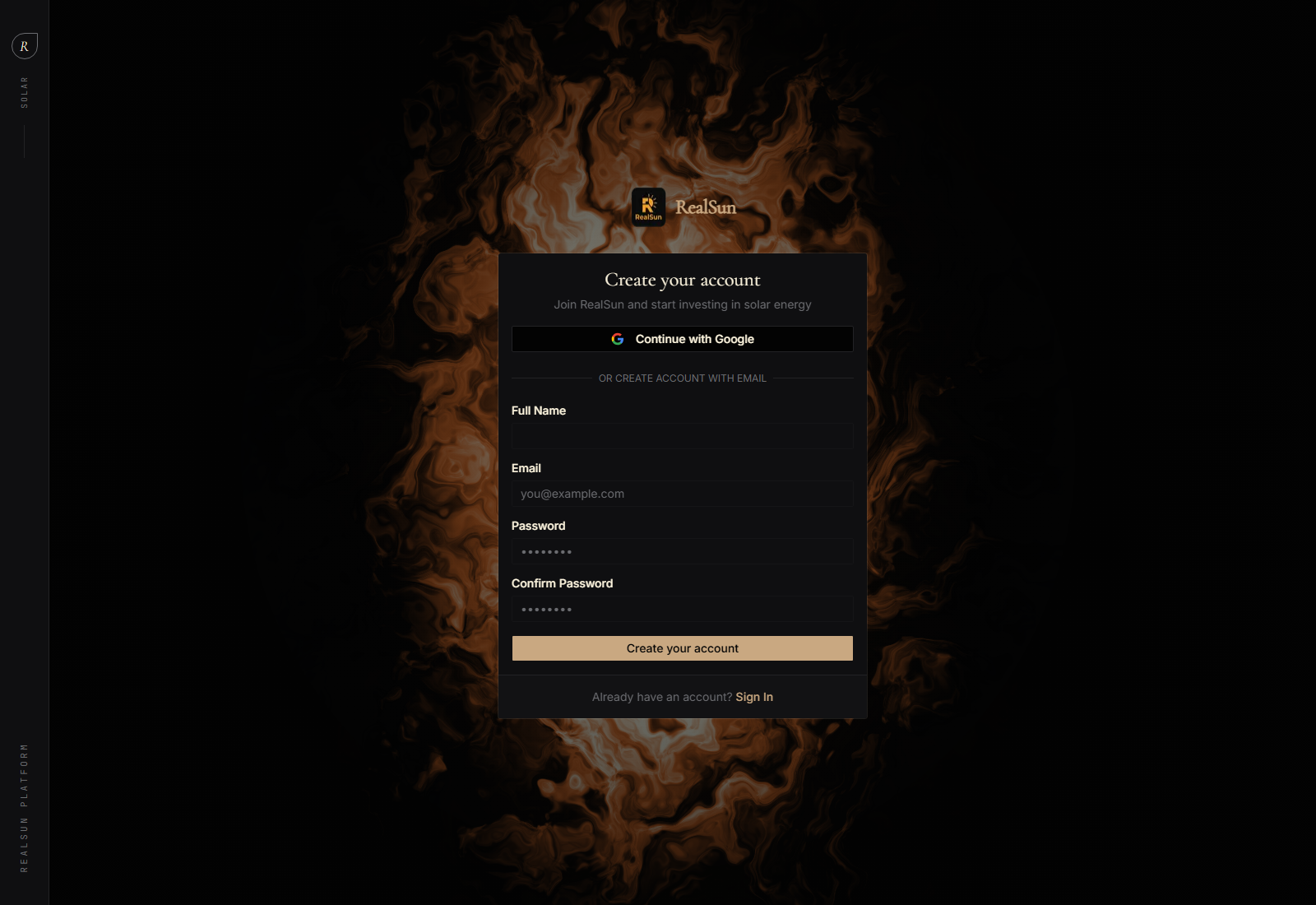
Select Continue with Google or create an account with email.
Enter Full Name, Email, Password, and Confirm Password, then submit.
03
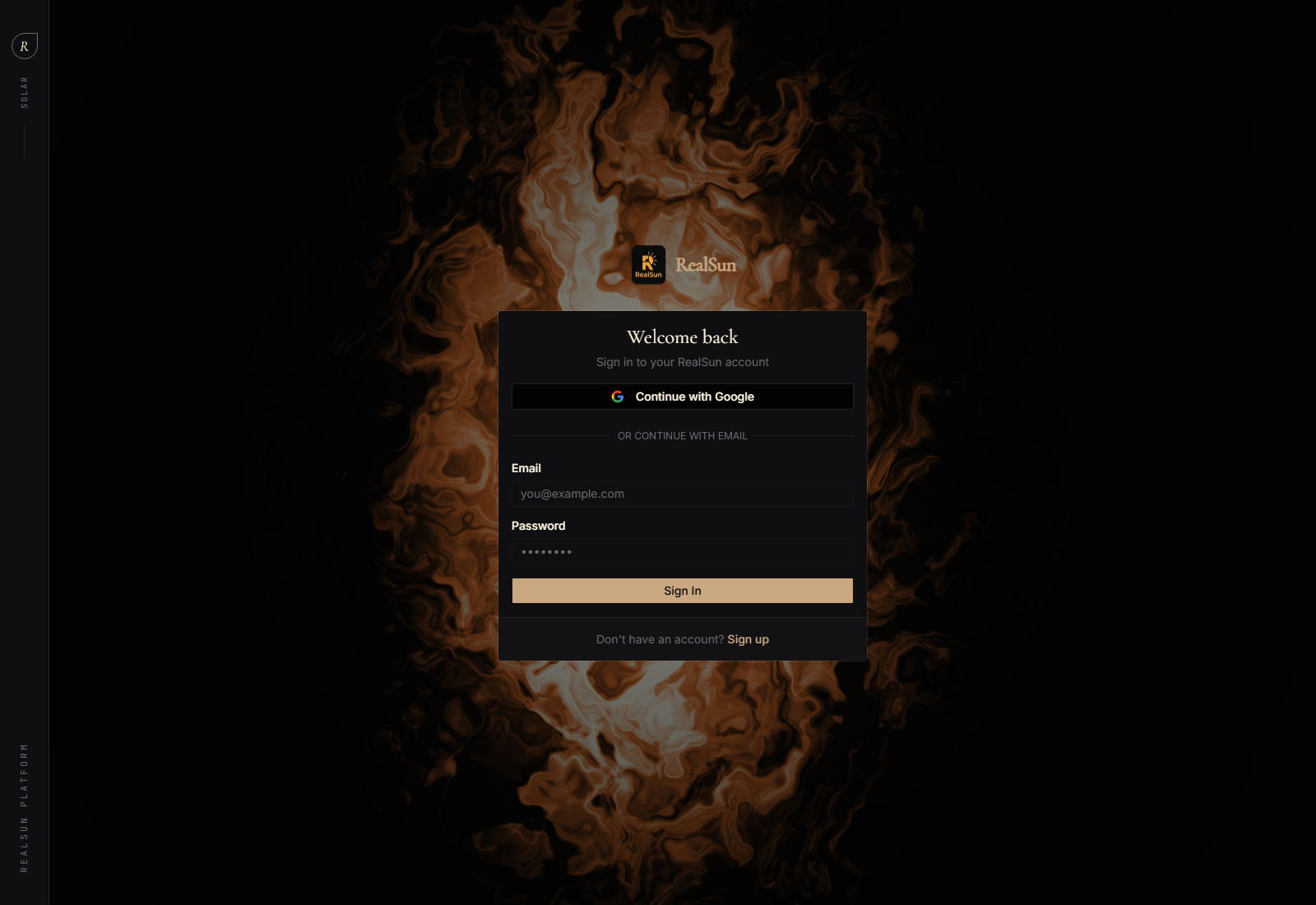
RealSun currently supports Google sign-in and email/password sign-in. If you already created an account, use the same method you used during registration.
04
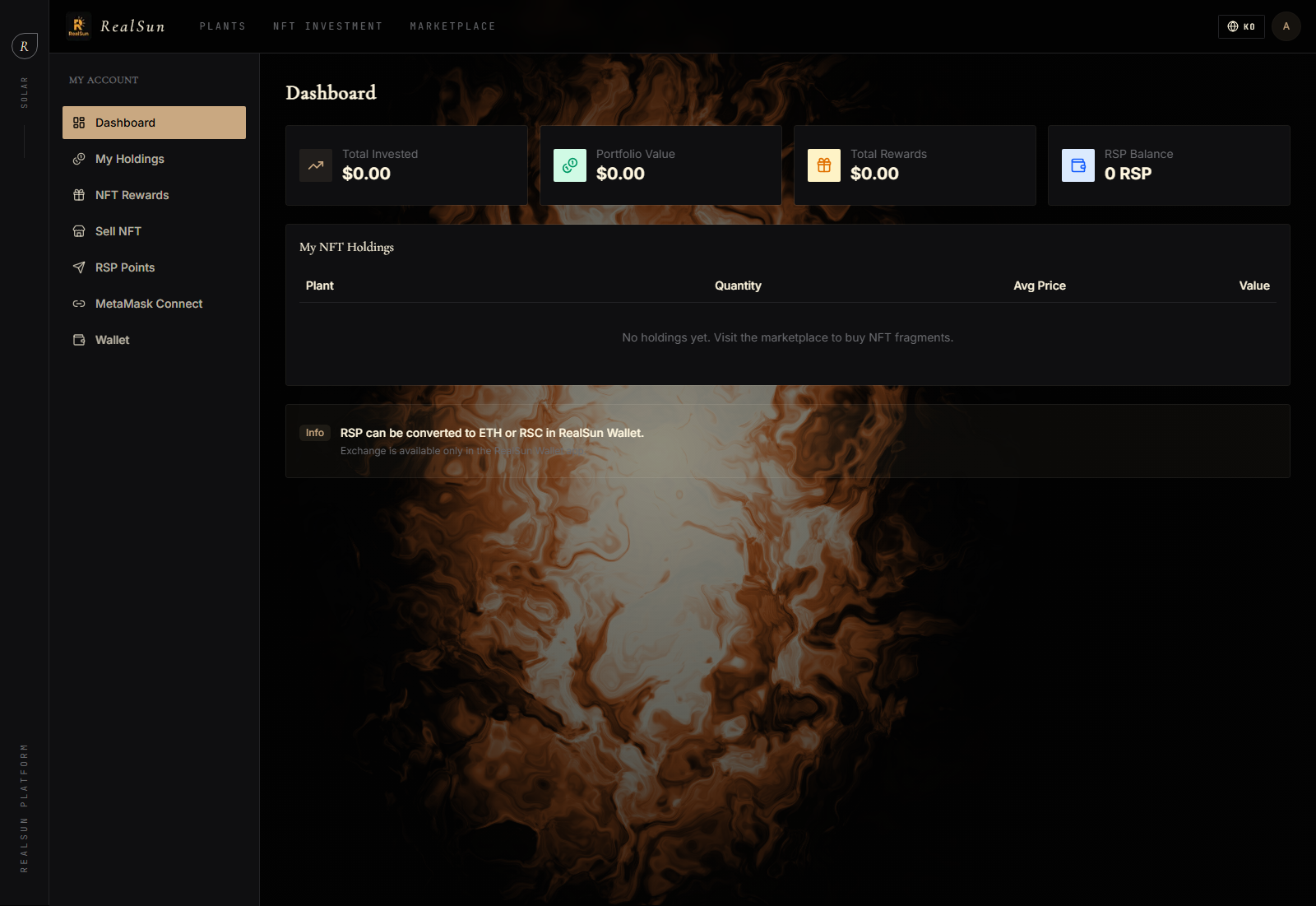
After a successful sign-in, RealSun opens the dashboard with account navigation, investment totals, reward totals, and wallet balance summaries.
05
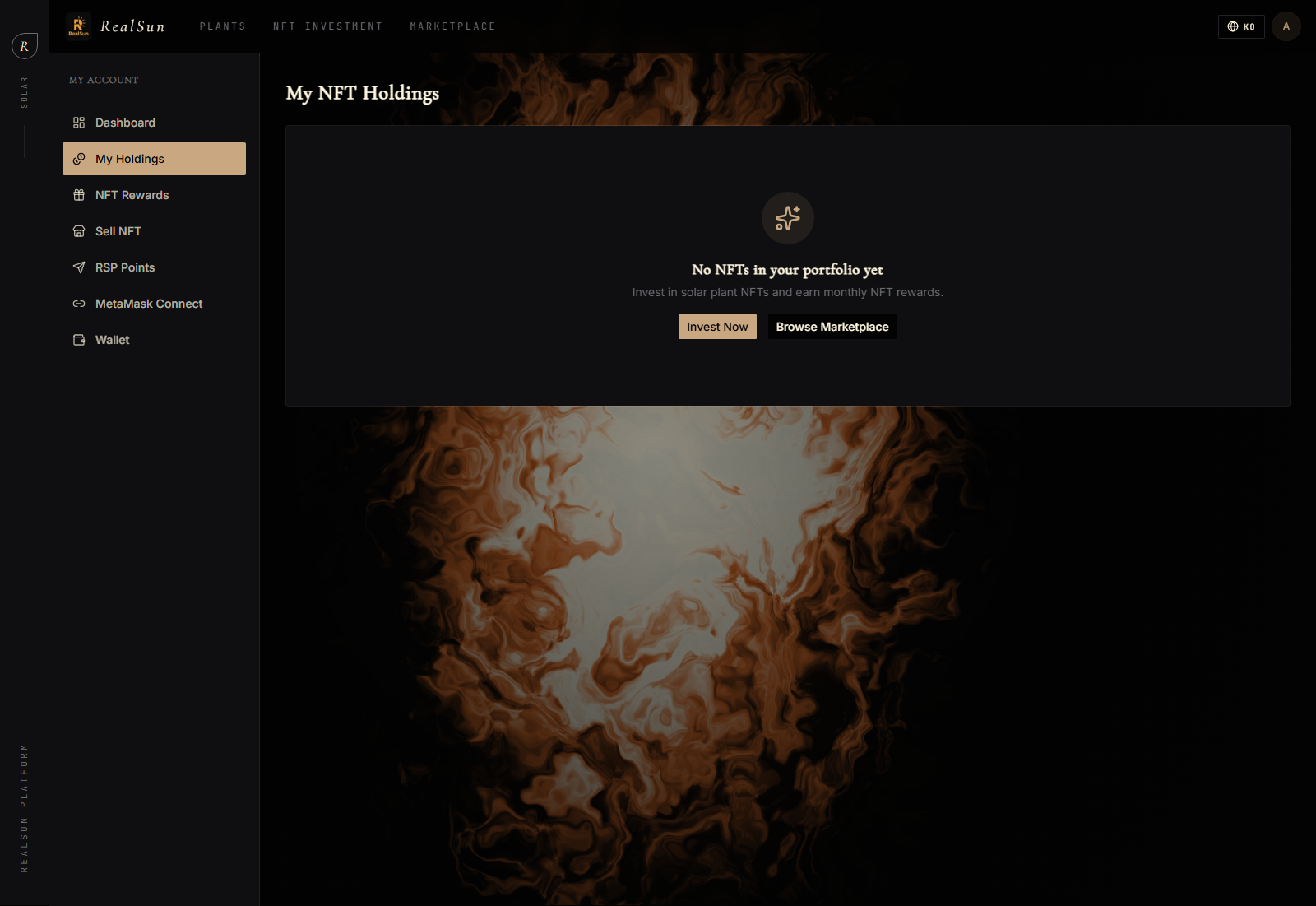
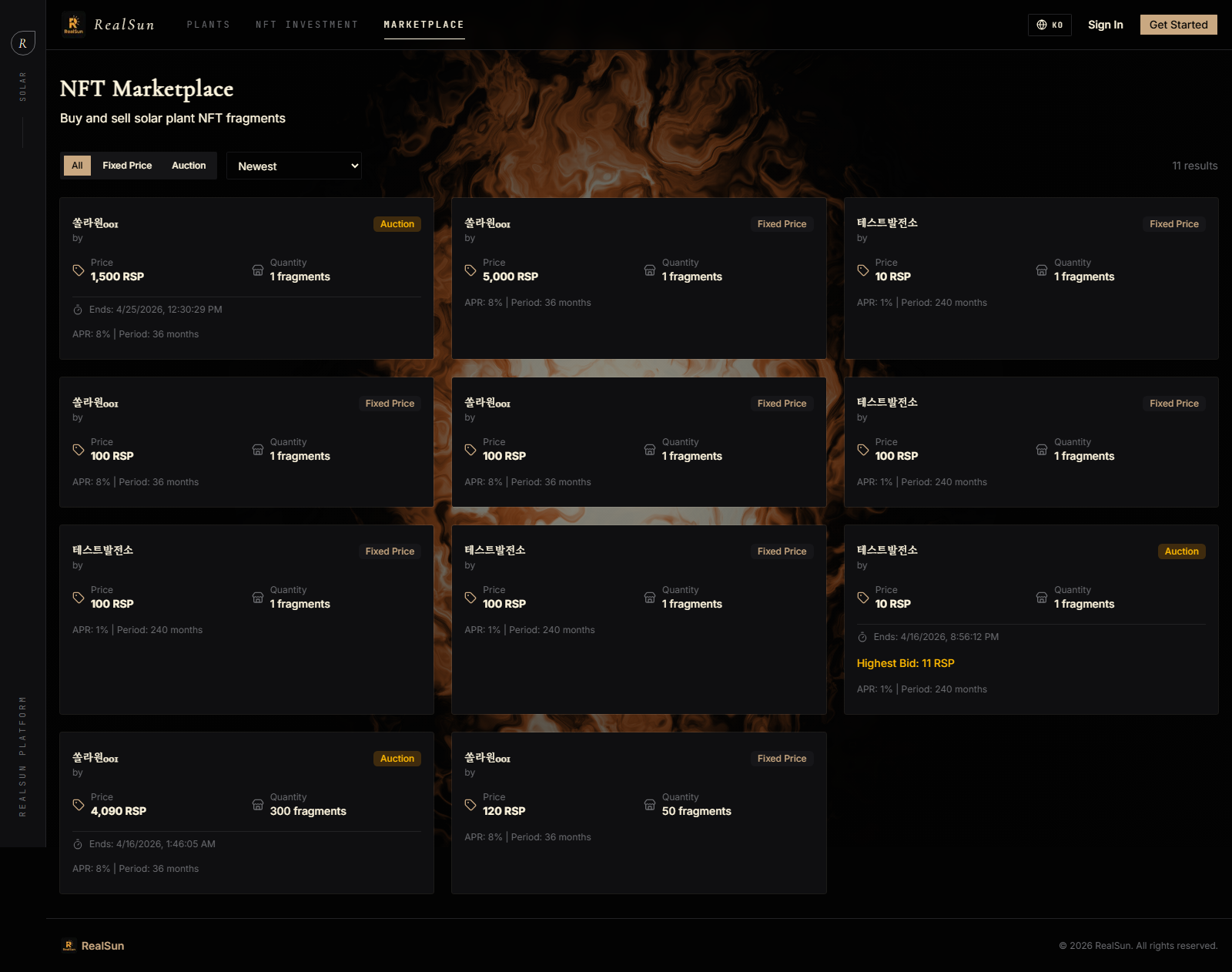
You can acquire NFT fragments from a plant detail page, the NFT Investment page, or a marketplace listing. The NFT app shows plant data, APR, fragment price, available quantity, and expected monthly reward before purchase.
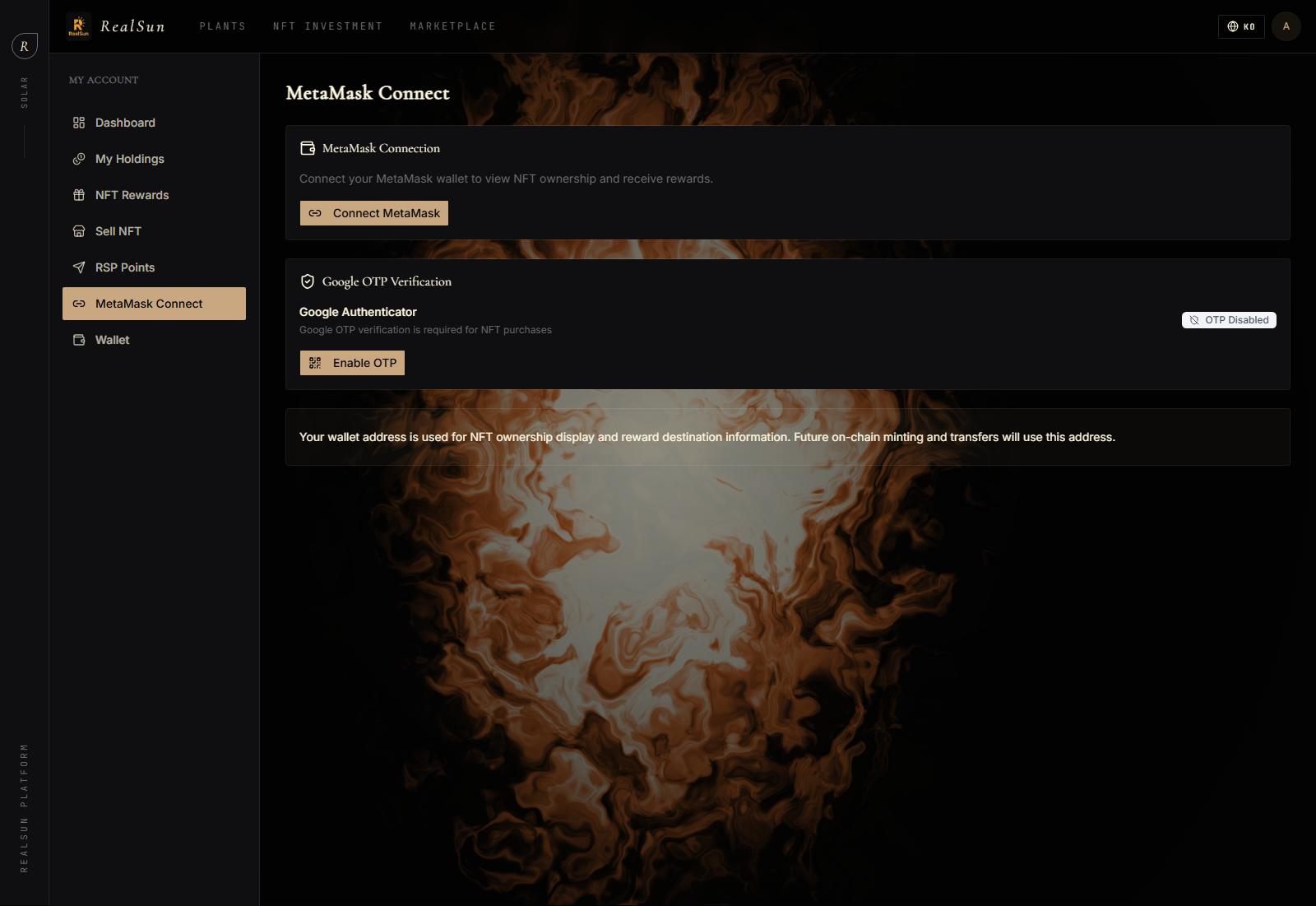
The MetaMask Connect screen states that Google OTP verification is required for NFT purchases. RealSun also uses your wallet address for NFT ownership display and reward destination information.
Select the quantity of fragments, verify total cost and operating period, then submit the purchase. After a successful purchase, the fragments should appear in My Holdings.
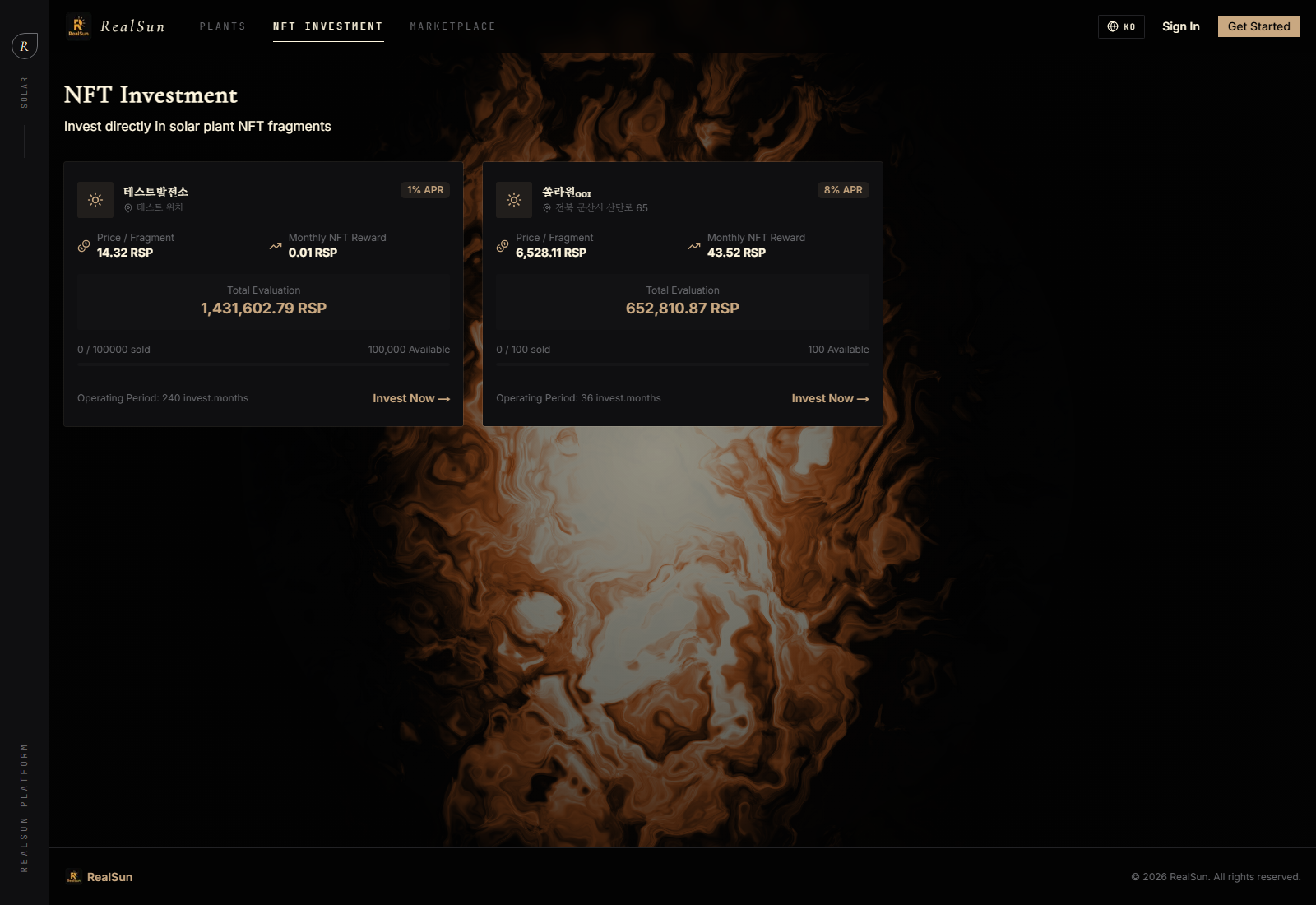
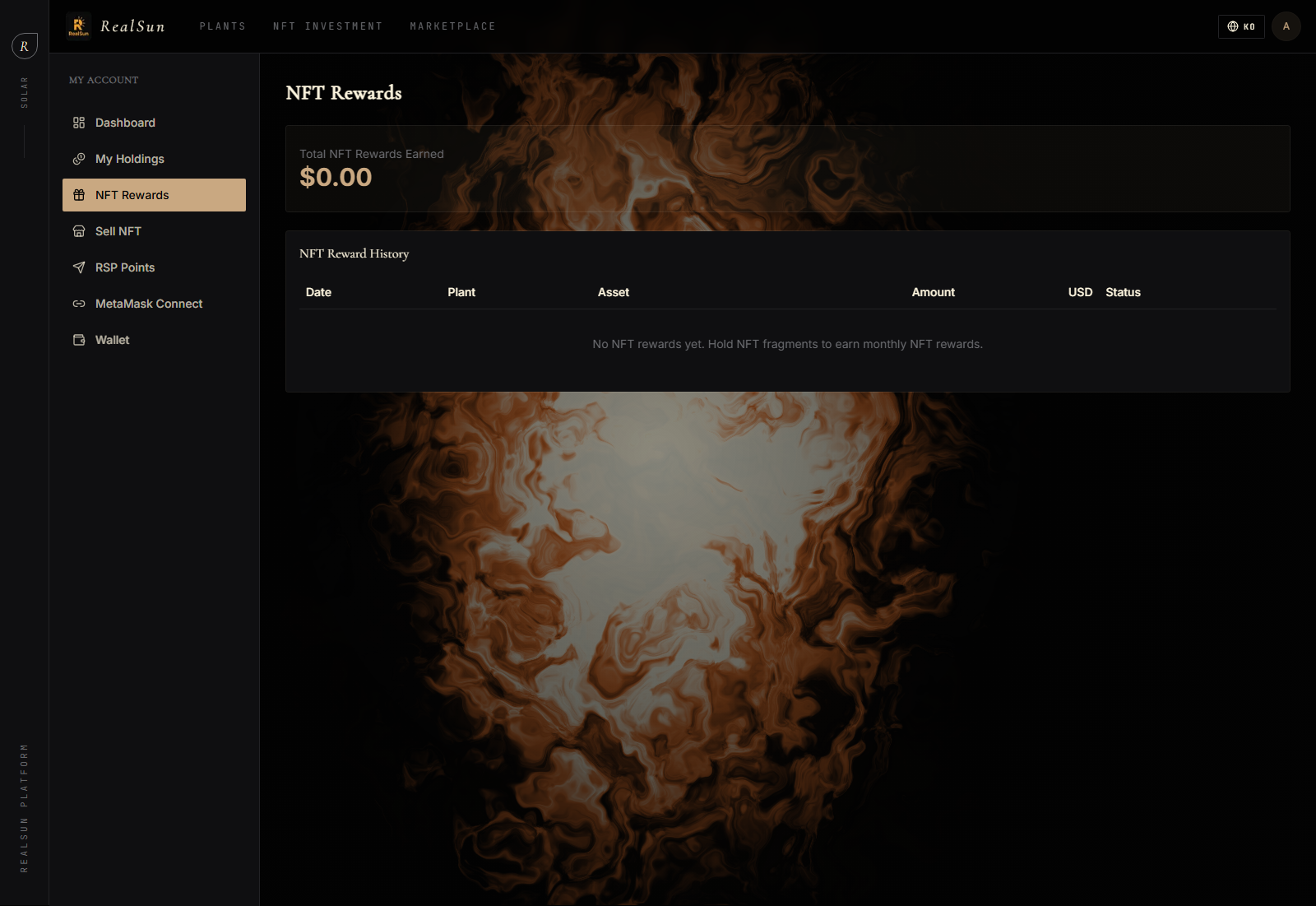
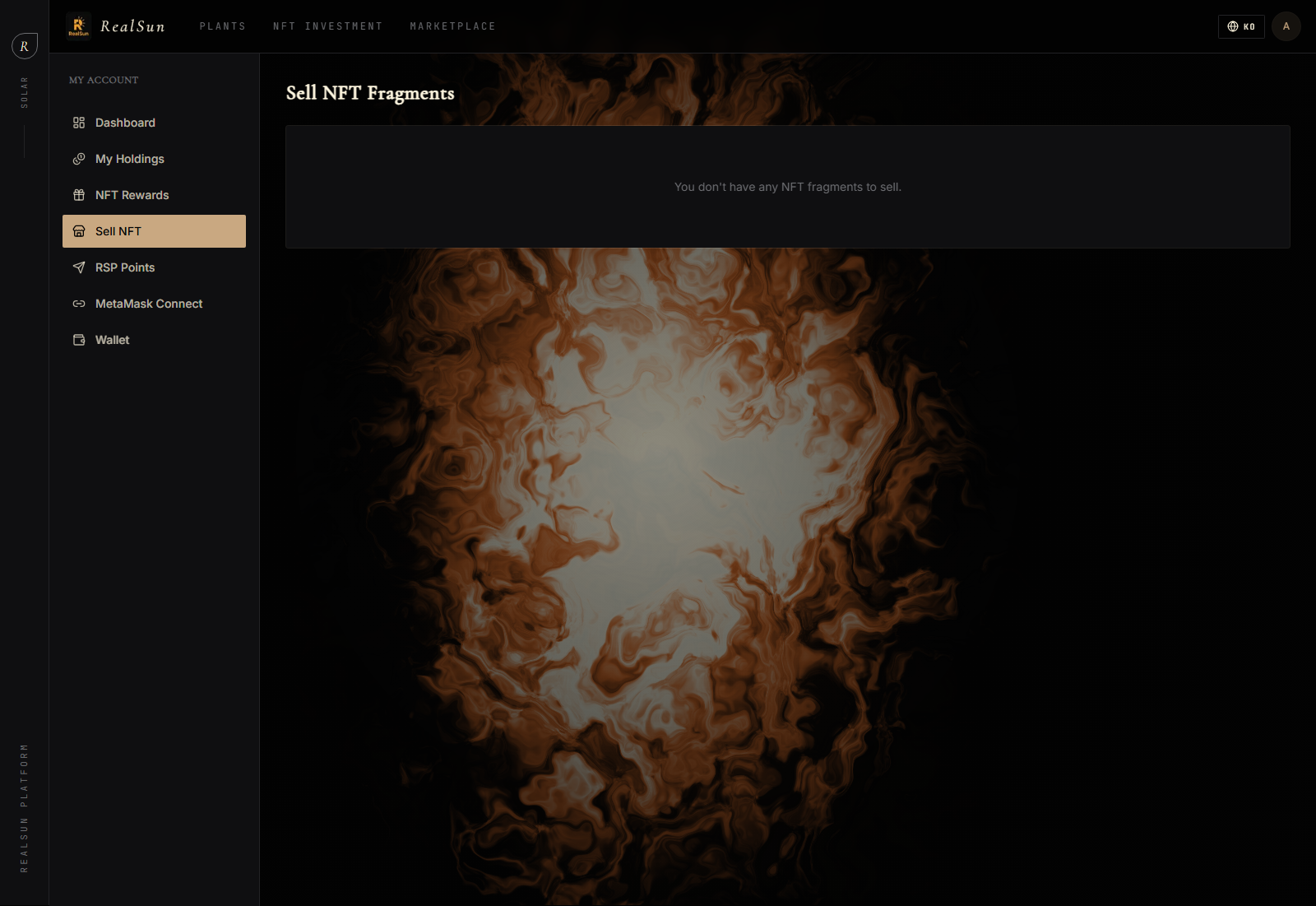
My Holdings is the ownership view for NFT fragments. NFT Rewards displays monthly reward history, and Sell NFT is the page used when you want to list owned fragments for sale.
06
The live MetaMask Connect page says Google Authenticator verification is required for NFT purchases. If OTP is disabled, enable it before attempting to buy fragments.
07
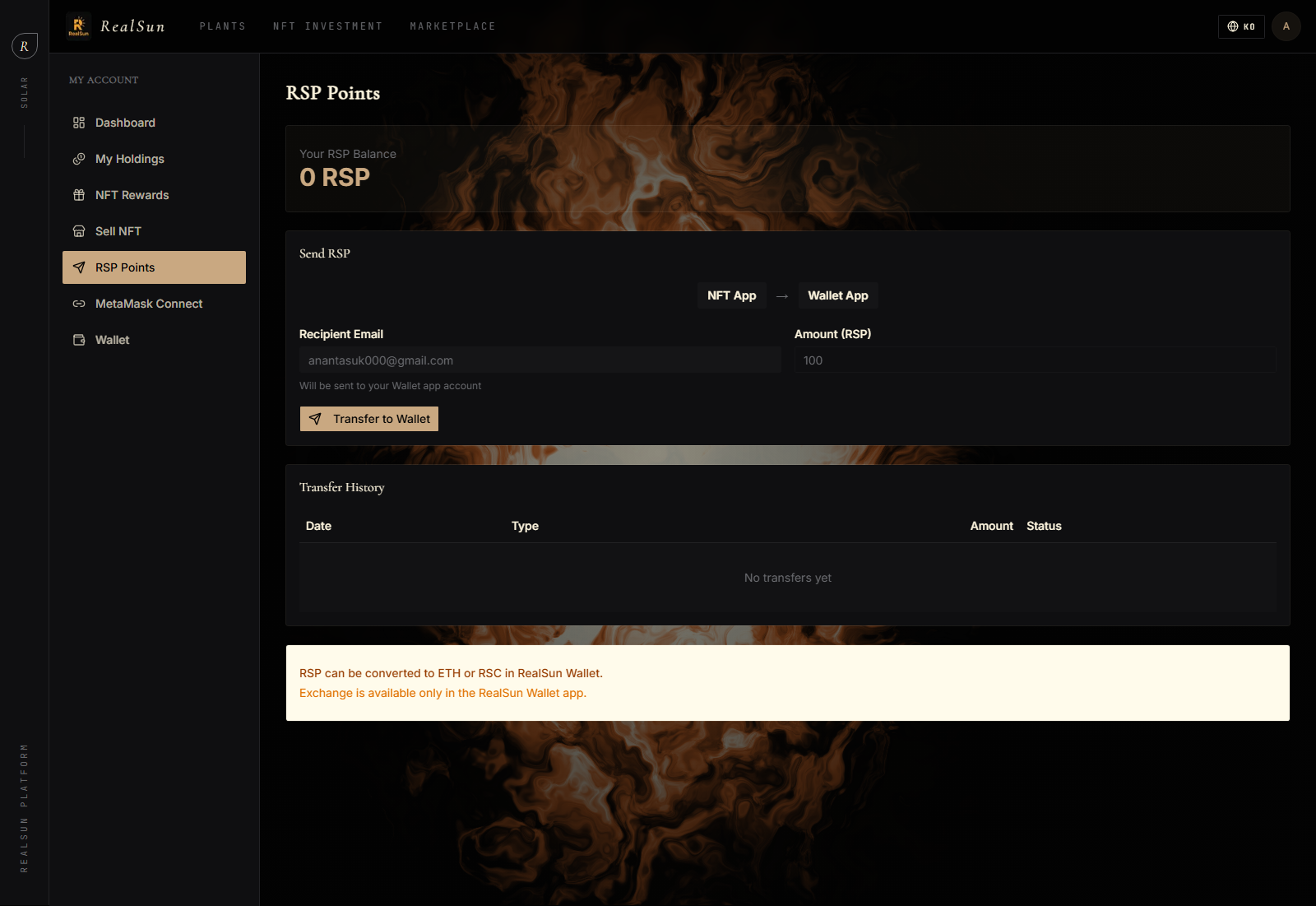
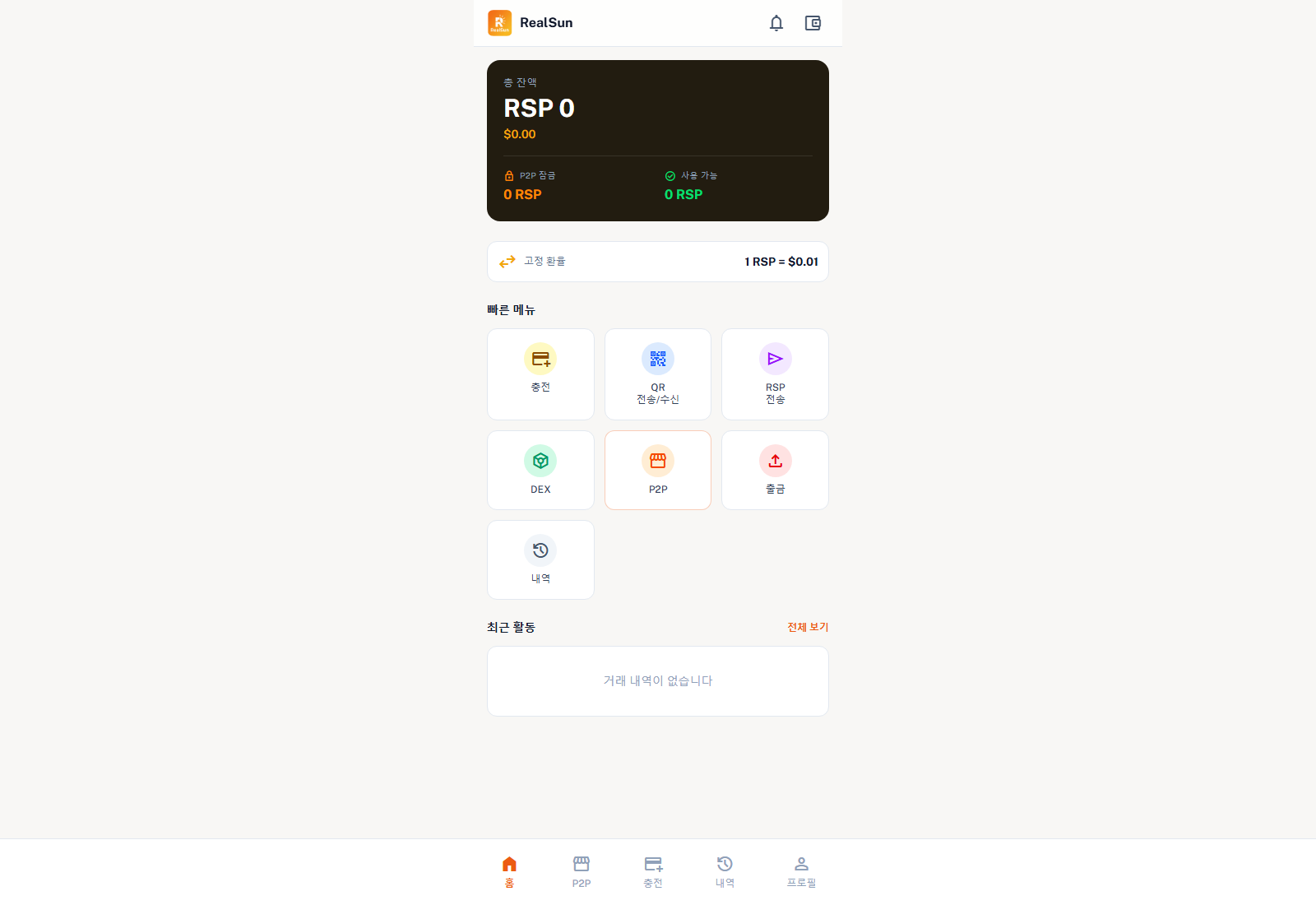
The NFT app explicitly states that RSP can be converted to ETH or RSC only in the RealSun Wallet app. The wallet home screen also shows a fixed exchange-rate panel for RSP.
P2P and DEX actions only make sense after you have RSP in the wallet environment. Move funds first, then continue to the wallet-specific buy, sell, or swap flow.
08
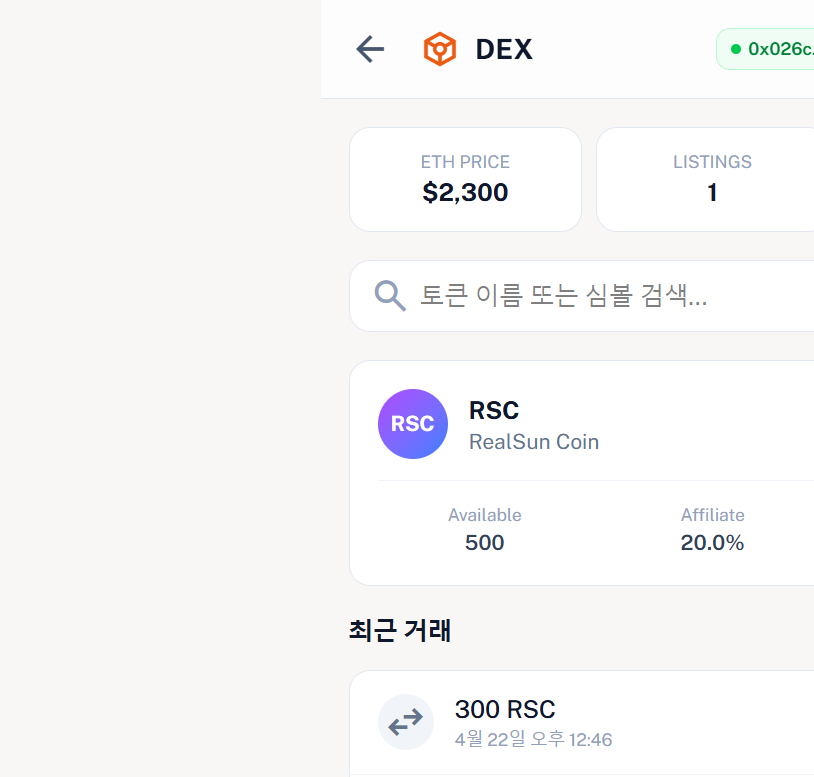
The RealSun Wallet app currently exposes a working P2P marketplace with buy and sell flows. The DEX page is reachable too. Without MetaMask it shows an install requirement, while with the MetaMask-enabled Chrome profile it loaded the live DEX trading screen with a connected wallet address and active RSC listing data.
08A
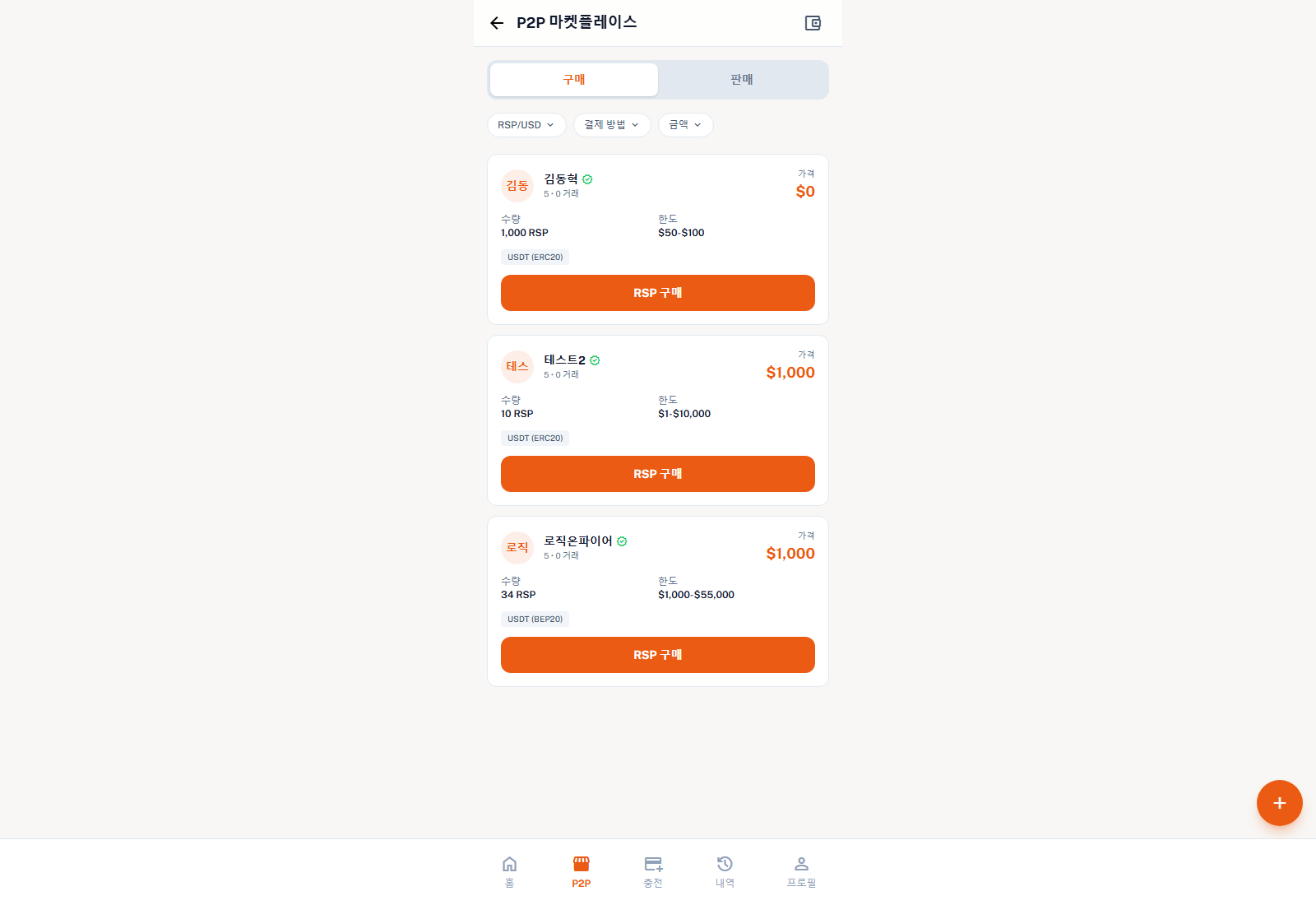
The live marketplace opens with the Buy tab and shows offer cards from sellers. You can filter by pair, payment method, and amount before choosing an order.
Each listing shows the seller name, verification badge, trade count, price, quantity, trading limit, and payment method such as USDT on ERC20 or BEP20.
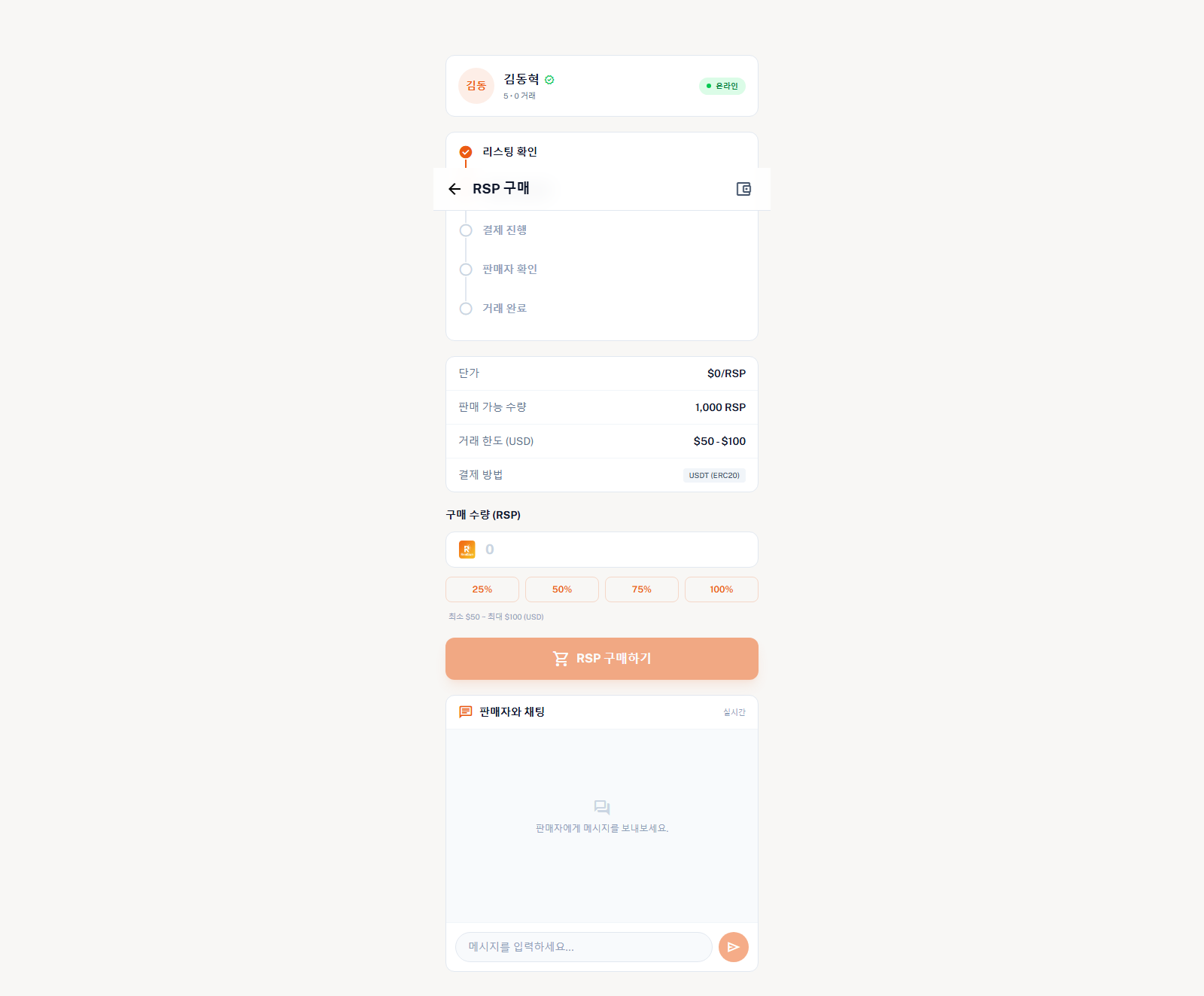
Selecting RSP Buy opens the order detail page. That screen shows the four-stage trade path: listing check, quantity entry, seller confirmation, and trade completion.
On the trade page, enter the purchase quantity in RSP or use the 25%, 50%, 75%, and 100% shortcuts. The screen also shows the USD limit range and a seller chat panel for direct communication.
08B
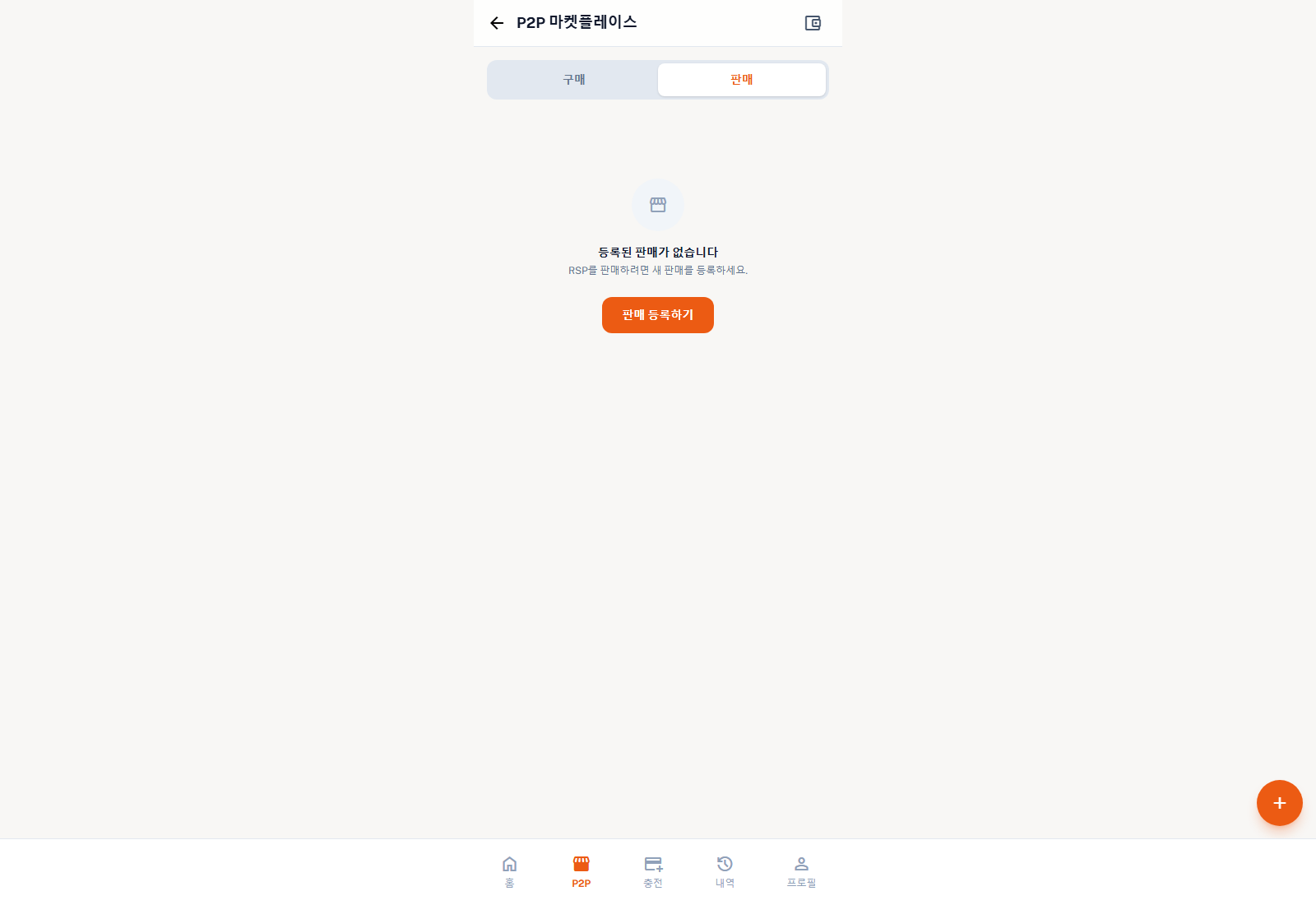
The live sell tab currently says there are no registered sales and directs the user to create a new sale listing.
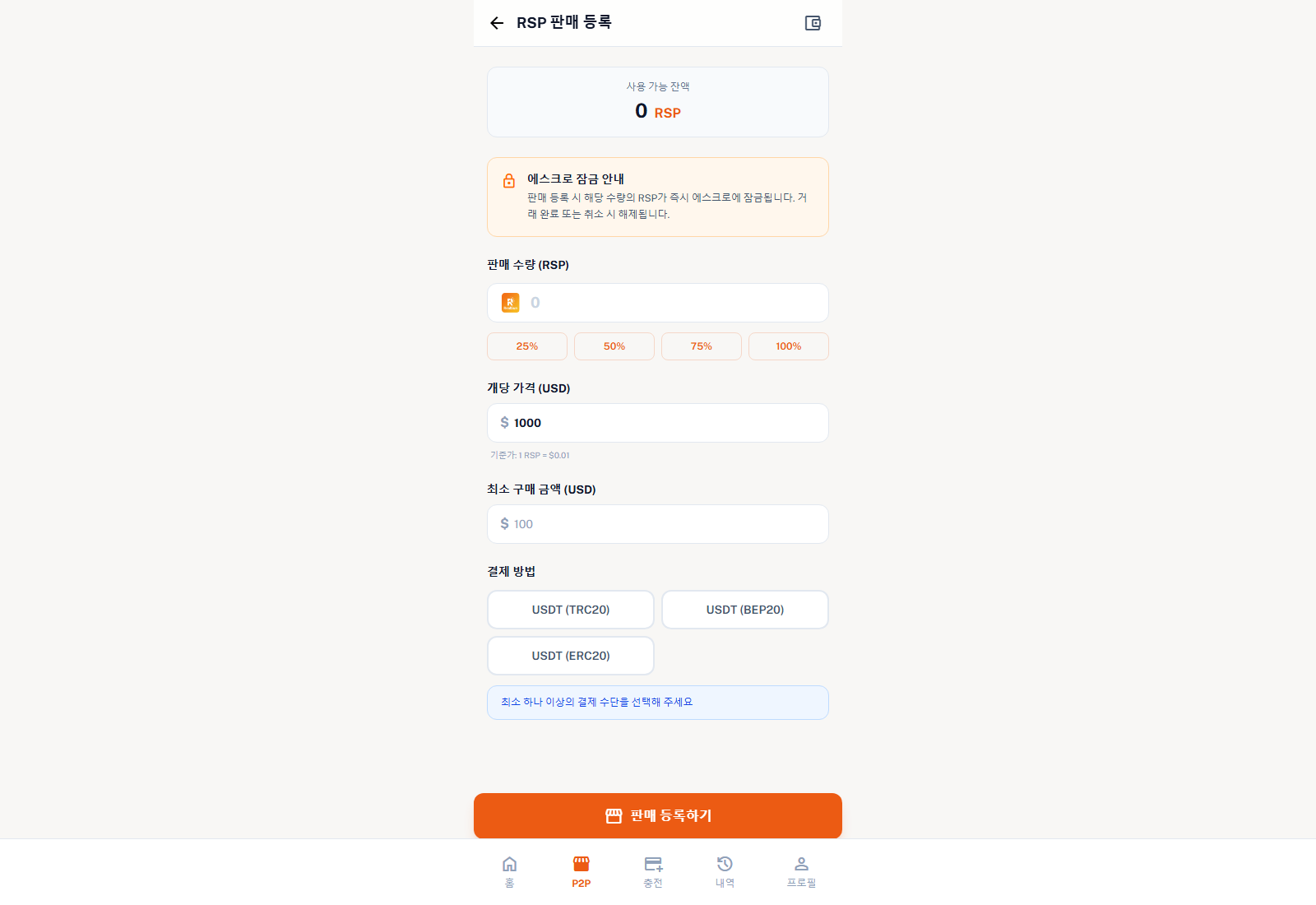
Tap Sell Registration to open the RSP sale form.
The form shows your available RSP balance and warns that the chosen quantity is locked in escrow immediately after listing.
Enter the sale quantity in RSP, set the price per unit in USD, choose the minimum purchase amount, and select one or more payment methods.
After the required fields are filled, submit the sale registration. The locked amount should then move into escrow.
08C
In the verified MetaMask-enabled flow, the DEX loads listing data and shows the connected wallet address. The remaining limitation is that this view behaves more like a token market/listing screen than a simple swap form, so users should treat it as a trading interface rather than a one-click converter.
The practical live sequence is: open DEX, make sure MetaMask is installed and unlocked in the same Chrome profile, let the wallet connect, then review the visible token card, price information, listing count, and recent trades.
After testing with the Chrome profile that contains MetaMask, the DEX completed the connection step without a separate popup in the automated run. It loaded a connected address, ETH price, listings count, the RSC token card, and recent trade activity.
09
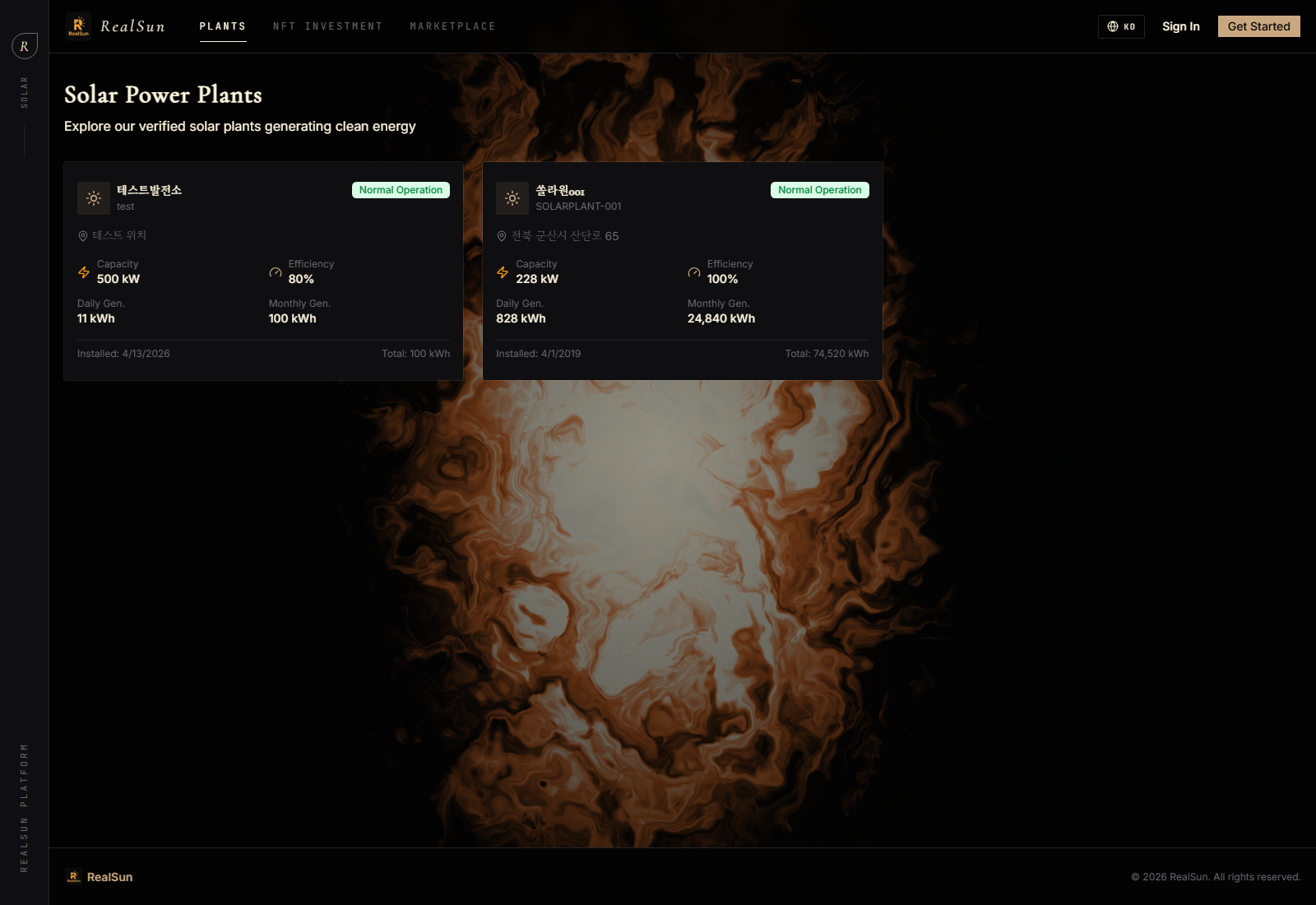
Review plant cards showing location, capacity, efficiency, and generation metrics.
Open a plant to view status, installed date, daily generation, monthly generation, and cumulative generation.
If NFT fragments are available, the detail page shows APR, price per fragment, and a Buy NFT action.
10
Compare APR, price per fragment, reward estimate, sold quantity, and operating period.
Choose a listing and move to its purchase detail page.
Enter the number of fragments, then verify total cost and estimated monthly NFT reward.
Use Confirm Purchase only after checking plant data, APR, pricing, and operating period.
11
12
Higher APR is only one factor. Check operating period and plant quality too.
Verify fragment quantity and marketplace transaction fees before final purchase.
New users should consider a smaller purchase first to learn the flow.
13
The DEX behavior depends on MetaMask availability in the browser profile. Without MetaMask, it stays on an install requirement screen. With the MetaMask-enabled Chrome profile, the DEX can connect and load the live trading screen. If it still does not load, make sure MetaMask is unlocked in the same browser profile and try opening DEX again.
The MetaMask Connect page states that Google OTP verification is required for NFT purchases. You may also need to connect MetaMask first so RealSun can use your wallet address for NFT ownership display and reward destination information.
Purchased NFT fragments are expected to appear in My Holdings. If you do not see them there, check that the purchase completed successfully, refresh the dashboard, and confirm the correct account and wallet connection are being used.
The rewards page shows that monthly reward history appears only after you hold NFT fragments. If there are no holdings yet, or the reward cycle has not completed, NFT Rewards can remain at zero.
Open RSP Points in the NFT app, enter the recipient email that belongs to your Wallet app account, enter the amount, and use Transfer to Wallet. The transfer history table on that page helps confirm whether anything has already been sent.
Reopen the MetaMask Connect page and reconnect the wallet, then refresh the app page you were using. If the Wallet app DEX still shows the MetaMask-required screen, verify you are in the same browser profile where MetaMask is installed and unlocked.